

Set up email in the new Outlook
Three steps with pictures, then a few short questions from Outlook, and your business mailbox is in the new Outlook. It takes about two minutes. You only click where the pink marker is.
Add your account
Section titled “Add your account”-
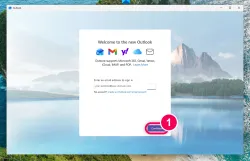
Enter your email address. On its first start Outlook asks for your email address. Type it in and click “Continue”.
→ Outlook looks up the server settings by itself. You never type a server name.
-
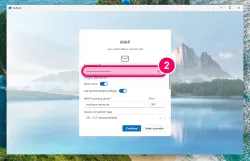
Enter your mailbox password. The heading says IMAP, which is correct. Enter the password of your mailbox and click “Continue”.
→ IMAP means your email stays on the server and looks the same on every device.
-
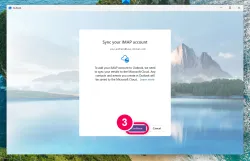
Read the notice, then “Continue”. Outlook explains here that it will sync your email with the Microsoft cloud. The new Outlook only works this way. If you agree, click “Continue”.
→ If you would rather not, click “Cancel” and use Thunderbird instead.
After that, Outlook asks a few more questions
Section titled “After that, Outlook asks a few more questions”| Outlook asks about | Our recommendation |
|---|---|
| Ads from partner companies (only in Europe) | Reject them all |
| The ad layout | Choose the banner. Ads then sit in a strip above your list. |
| Optional diagnostic data | Choose no, then confirm |
| A notice about connected experiences | Read it and continue |
| Taking over your Windows settings | Accept |
Which questions appear depends on your country and changes with new Outlook versions. If one does not show up for you, that is fine. At the end your email address appears on the left with its folders.
Want to remove the account again? Right-click your email address on the left, open the account settings and remove it at the very bottom of the account page.